
TL;DR / Quick Facts
- The Upwork time tracker lives inside the Upwork desktop app and is used for hourly contracts.
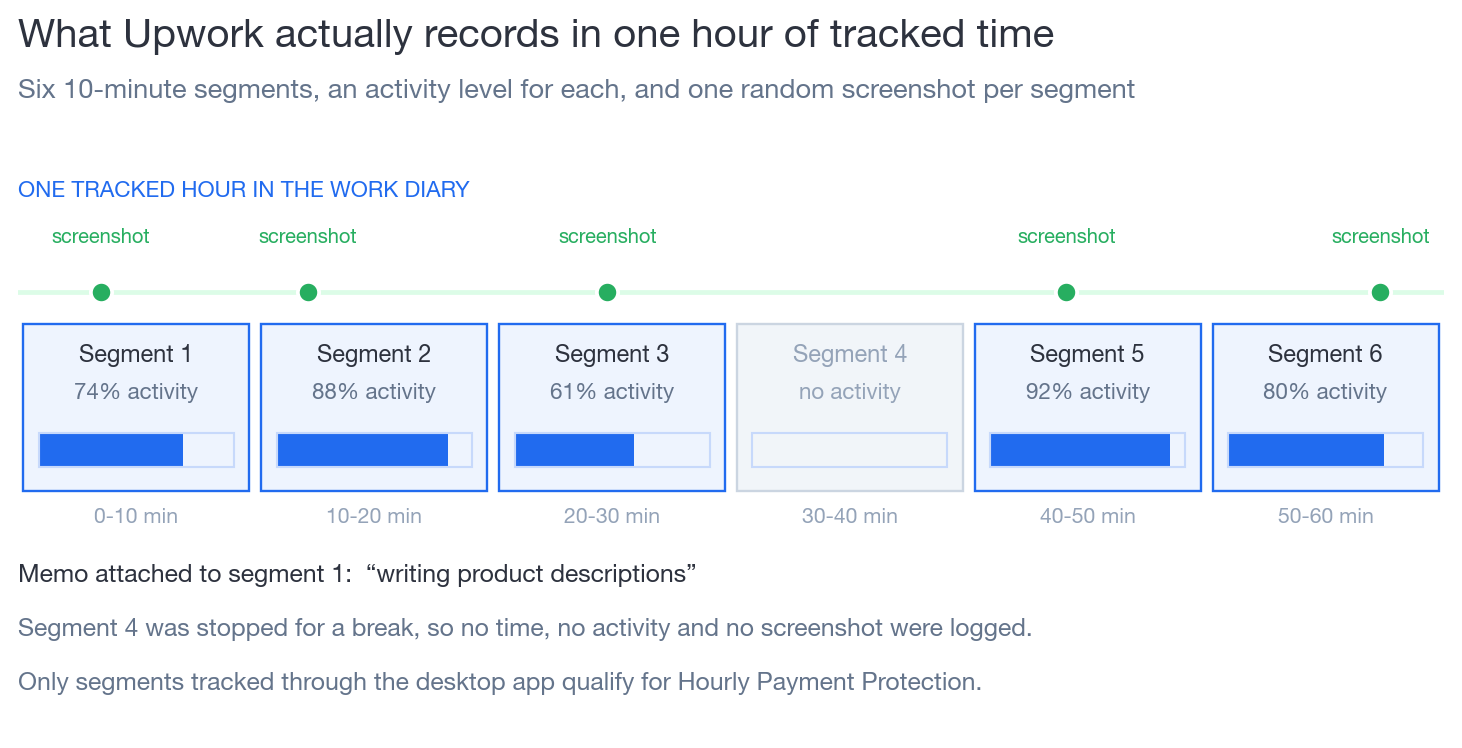
- It records time in 10 minute segments, along with keyboard and mouse activity.
- The tracker can take random screenshots while it is running so clients can see what you were working on.
- Correctly tracked time can qualify for payment protection on hourly contracts.
- The biggest Upwork tracker benefits come when you use clear memos, track only relevant work, and review your Work Diary regularly.
The tracker is not just a timer. It is your record of what you did and the foundation of trust between you and your client.
1. What Is the Upwork Time Tracker and Why It Matters
Upwork time tracking is designed for hourly contracts. When you start the tracker, it runs on your computer in the background and logs your work on a specific contract.
1.1 What the tracker actually records
When the Upwork tracking software is running, it usually
- Counts your time in six 10 minute segments per hour
- Measures keyboard and mouse activity in each segment
- Captures a random screenshot in each segment
- Attaches your memo or task description to the time you log
All of this shows up in your Work Diary. You and your client can review it later if there is any confusion about what was done.
1.2 Why the tracker matters for payment protection
For hourly contracts, Upwork offers payment protection if
- The time is tracked using the desktop app
- The work shown in screenshots is clearly related to the contract
- Memos are clear and accurate
- You stay within the weekly hour limit agreed with the client
Using the Upwork time tracker correctly is one of the key ways to avoid payment issues and disputes.
2. How To Set Up the Upwork Tracking Software
The setup is simple but important.
2.1 Install and sign in
To get started
- Download and install the Upwork desktop app for your operating system.
- Open the app and sign in with the same Upwork account you use in your browser.
- Allow any necessary permissions so the app can capture screenshots and activity while you work.
Once you are signed in, you will see your active hourly contracts in a dropdown list.
2.2 Select the right contract
Before you start working
- Choose the correct contract from the list in the desktop app
- Make sure the client name and job title match what you are about to work on
This prevents you from accidentally logging time to the wrong project and keeps your Work Diary clean and easy to understand.
3. How To Use the Upwork Time Tracker Day To Day
Once everything is set up, using the tracker becomes part of your routine.
3.1 How to open Upwork time tracker
You can open the tracker by
- Launching the Upwork desktop app from your applications folder or start menu
- Signing in if you are not already logged in
- Keeping the app visible in your taskbar or dock so you can start and stop tracking easily
You do not need to keep the app in front of you, but it must be running for the tracker to work.
3.2 How to start Upwork time tracker
To start tracking time on a contract
- Open the desktop app.
- Select the correct contract from the dropdown.
- Type a short memo describing what you are about to do, such as writing product descriptions or fixing a checkout bug.
- Click the button to start tracking.
From that moment, the Upwork time tracker will log your activity in 10 minute blocks until you click stop.
When you are done or switching tasks, click stop tracking, update your memo if needed, and then start again for the next task or contract.
4. Upwork Tracker Best Practices
The tool is simple. The results depend on how you use it.
4.1 Best practices for freelancers
To get the most from the Upwork tracker benefits
- Always use the tracker for hourly contracts
Manual time is far more likely to be questioned and is often not covered by protection. - Write clear memos
For example, blog outline, design homepage hero section, QA test on mobile. - Track only relevant work
Make sure your open windows and screenshots clearly relate to the client project. - Pause for breaks
Stop tracking when you step away or work on something unrelated. Restart when you are back on task. - Respect weekly limits
Check the weekly hour limit on each contract so you are not surprised at billing time.
These Upwork tracker best practices help you get paid smoothly and build trust with clients.
4.2 Best practices for clients
Clients can also use the Work Diary to manage projects better
- Review tracked time regularly, not only when something feels wrong
- Look at memos and screenshots to understand how time is being used
- Adjust weekly limits if you consistently need more or fewer hours
- Talk with your freelancer about expectations for when to use tracked time versus manual time
When both sides treat the tracker as a shared source of truth, there are fewer misunderstandings and disputes.
5. Upwork Tracker Benefits For Your Freelance Business
Used well, the Upwork tracking software offers several important advantages.
For freelancers
- Transparent proof of work when clients ask questions
- A simple habit that supports hourly payment protection
- Clear separation between billable and non billable time
For clients
- Visibility into how time is being spent
- Better control over budgets and weekly hours
- Confidence that hours correspond to real work
For both sides, the biggest benefit is reduced friction. With a clear record of what happened and when, you spend less time arguing about hours and more time focusing on work.
Conclusion
The Upwork time tracker can feel intimidating at first, but it is ultimately just a simple tool
- Install the desktop app and sign in
- Select the right contract and write clear memos
- Start and stop tracking when you actually work
- Review your Work Diary regularly and keep your screenshots relevant
If you follow these habits, the tracker becomes one of the key safety nets in your freelance business. It supports your income, builds trust with clients, and keeps everyone aligned on what happened during billed hours.
What really makes a difference is how the tracker fits into your larger Upwork system. It is one piece alongside your profile, proposals, rates, and client relationships. When all those pieces work together, you do not just log hours more safely, you build a much more predictable and professional Upwork career.
This is exactly where our team can help.
At GigRadar we work with freelancers and agencies to turn random Upwork activity into a clear, repeatable system. We look at how you win work, how you track time, and how you get paid, and then help you design a process that protects your income while keeping clients happy.
So as you finish this article and notice the call to action just below, ask yourself
Am I ready to treat my time tracking and my Upwork setup as part of a real business system, not just a collection of tools
If your answer is yes, or even I am curious, use the button under this article to book a demo with the GigRadar team. In that conversation we will walk through your current Upwork setup, including how you track time, and outline simple, practical changes to make your projects smoother, safer, and more profitable.
That call is the natural next step after this article and the first step toward a calmer, more professional Upwork workflow.
FAQs
How does Upwork time tracker work
The Upwork time tracker runs inside the desktop app and is used on hourly contracts. When you start it, it logs your work in 10 minute segments, records your keyboard and mouse activity, and can take random screenshots while it is running. All of this is stored in your Work Diary for you and your client to review.
Does Upwork time tracker take screenshots
Yes, the tracker can take periodic screenshots while it is running. These images show whatever is on your screen during that moment. They are attached to the corresponding 10 minute time segment in your Work Diary and help demonstrate that the time you logged was spent on the agreed work.
How to start Upwork time tracker
Open the desktop app, select the correct hourly contract, type a short memo describing what you are about to do, and click the button to start tracking. The app will then record your time and activity until you click stop.
How to open Upwork time tracker
Install the Upwork desktop app, then open it from your normal applications list or start menu. Sign in with your Upwork account. Once the app is running, you have access to the time tracking controls and your list of active hourly contracts.